Google Review QR Code: How to Create One and Get More Reviews (2026)
A Google Review QR code sends customers directly to your review form in one scan. Here's how to create one, where to place it, and why dynamic QR codes collect 2–3× more reviews than static ones.

Asking customers to leave a Google review is easy. Getting them to actually do it is not. Most people who had a great experience never follow through — not because they don't want to, but because finding your Google review page takes six steps they weren't planning to take.
A Google Review QR code cuts that to one. Scan, land on your review form, leave a star rating. Done. Businesses that use review QR codes consistently report 2–3× more reviews than those that rely on verbal requests alone. This guide shows you exactly how to create one, where to put it, and why the type of QR code you choose matters more than most people realise.
Why customers don't leave reviews (and how a QR code fixes it)#
The process of leaving a Google review without a direct link looks like this: open Google, search for the business name, find the right listing among similar names, scroll to the reviews section, click "Write a review", sign in if not already logged in. That's six steps — and most people abandon somewhere in the middle.
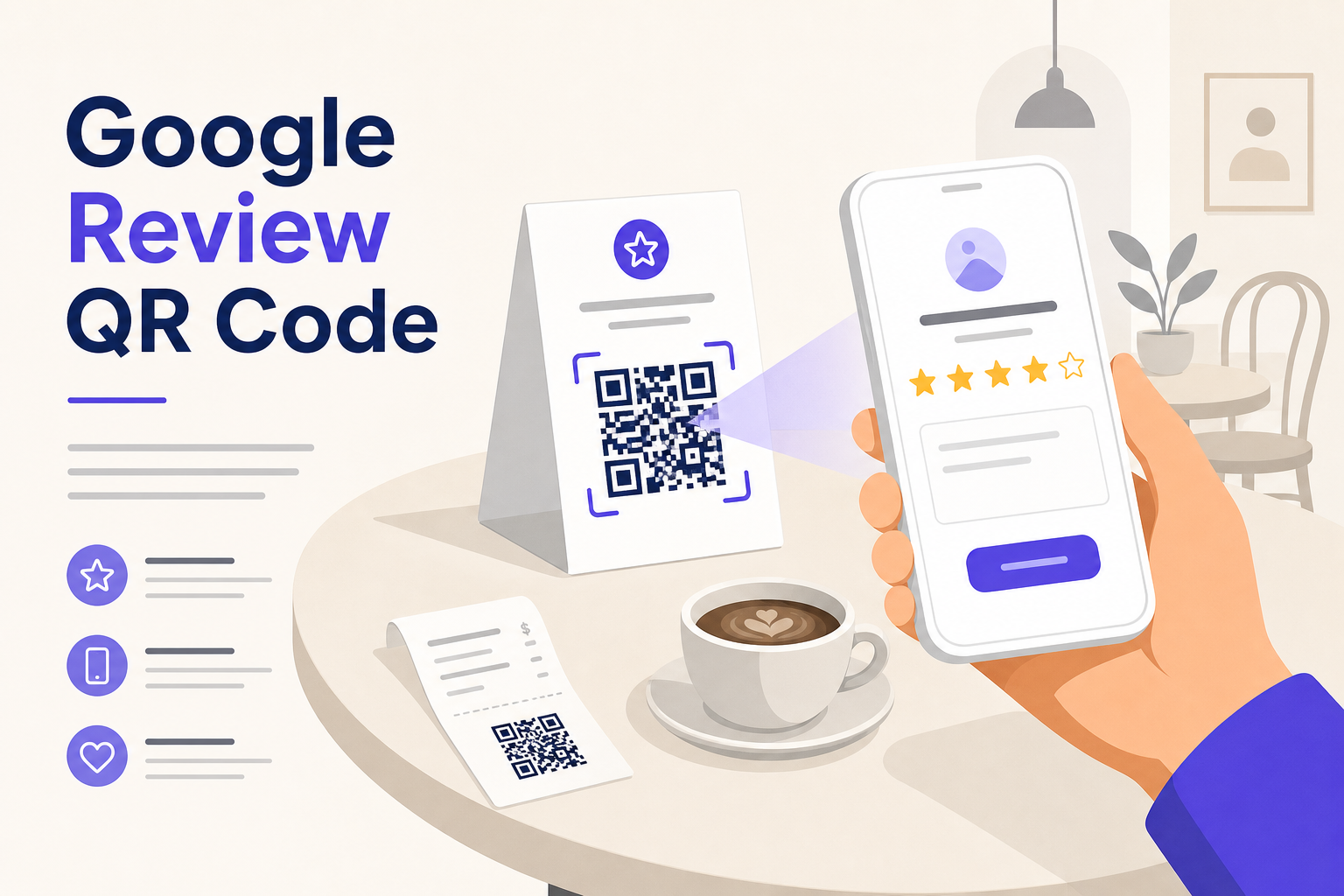
A QR code on a receipt, a table card, or a goodbye note collapses all six steps into one tap. The customer scans, Google Maps opens with your business pre-selected, and the review form is right there. The friction is gone.
How to find your Google review link#
Before creating a QR code, you need your direct Google review link. Here's how to get it:
- Go to Google Business Profile and sign in
- Select your business location
- In the dashboard, click "Ask for reviews" (sometimes shown as "Get more reviews")
- Google generates a short shareable link — copy it
The link looks like this: https://g.page/r/YOUR_PLACE_ID/review
This is the URL your QR code will point to. Keep it somewhere safe — you'll need it in the next step.
Can't find the "Ask for reviews" button? Search for your business name on Google, find your Business Profile panel on the right side, and click "Write a review" — then copy the URL from your browser.
Three ways to create a Google Review QR code#
Option 1 — Download directly from Google (free, static)
Google now generates a basic QR code alongside your review link. In your Google Business Profile dashboard, click "Ask for reviews" and look for the download option below the link. This gives you a plain black-and-white QR code you can print immediately.
The limitation: it's a static QR code. The destination is locked into the image. If your Google Place ID ever changes — which happens when businesses move or get re-listed — the QR code stops working and everything you've printed becomes useless.
Option 2 — Use a free static QR generator
Copy your Google review link and paste it into any free QR code generator. You'll get a customisable code — add your logo, change the colours, download as PNG or SVG.
Same limitation as Option 1: static means unchangeable. Works fine if you're printing a small batch and don't need to track scans.
Option 3 — Create a dynamic Google Review QR with QRflows (recommended)
A dynamic QR code stores a short redirect URL instead of the destination directly. When someone scans it, they're routed through QRflows to wherever you've pointed the code — which you can update anytime from the dashboard.
For Google Review QR codes specifically, this matters for two reasons:
- Analytics. You can see exactly how many people scanned your QR, when, and on what device. If you place codes in three locations — receipt, table card, window sticker — you know which one drives the most reviews.
- Updatability. If your Google Place ID changes (it happens more often than you'd expect after address changes or Google re-verifications), you update the destination in the dashboard. Every printed QR code you've ever distributed starts pointing to the new link automatically. No reprints.
To create one in QRflows: select "Google Review" as the QR type, paste your review link, customise the design, download, and print. The QR code is live immediately.
Where to place your Google Review QR code#
Location matters as much as the QR code itself. The highest-performing placements share one thing: they reach customers at the moment they're most satisfied.
Receipts and checkout. The moment a customer pays is when their experience is freshest. A QR code printed at the bottom of a receipt — with a single line like "Enjoyed your visit? Scan to leave a review" — catches them at peak satisfaction.
Table cards and tent cards. For restaurants and cafes, a small printed card on every table gives customers something to do while waiting for the bill. The QR should be on the side facing the customer, not the server.
The goodbye card. A small card handed to customers on the way out — or included in packaging — with a personal note and a QR code. This works especially well for service businesses: salons, clinics, repair shops.
Window sticker. Placed at eye level near the exit. Customers see it on the way out, scan before they leave. Works for retail and food service.
Business cards. For freelancers and service providers, a QR code on the back of a business card pointing to your Google reviews builds trust before the first meeting.
One rule across all placements: always include a short call to action next to the QR code. "Scan to leave a review" outperforms a bare QR code by a wide margin — people don't automatically know what a QR will do.
Static vs dynamic: which do you actually need?#
For a one-time print run of 20 cards, a static QR code from Google or a free generator is perfectly fine. It works, it's free, and there's no ongoing cost.
For anything printed in volume — receipts, table cards, packaging, window stickers — a dynamic QR code is worth it for three reasons:
First, scan analytics tell you which placement actually drives reviews. Without tracking, you're guessing. With tracking, you know whether the receipt QR or the table card QR is responsible for the reviews you're getting.
Second, updatability protects your print investment. A restaurant that reprints table cards every season doesn't need to reprint QR codes if the review link changes — the redirect updates in the dashboard.
Third, design flexibility. Dynamic QR codes encode a short URL, which produces a simpler, less dense pattern. Simpler patterns scan more reliably at small sizes — important when you're printing at business card scale.
QRflows Growth plan (€19/month) covers unlimited scans and analytics. The Pro plan (€39/month) adds Smart Rules — useful if you want to route customers to different review platforms based on their country or device.
Common mistakes that kill your review rate#
- QR code too small. The minimum scannable size for a table card or receipt is 2cm × 2cm. Anything smaller and phones struggle, especially in low light.
- No call to action. A bare QR code with no text converts poorly. Always add "Scan to leave a Google review" or similar — one line is enough.
- Wrong placement timing. A QR code at the entrance doesn't make sense for reviews — customers haven't experienced anything yet. Place it at the exit point or at the moment of payment.
- Static code, changed link. If you use a static QR and your Google review link changes, every printed code you have becomes a dead end. This is the most common and most avoidable mistake.
- Never tested before printing. Always scan the printed version — not the digital file — on at least two different phones before approving a print run.
FAQ#
How do I find my Google review link? Go to Google Business Profile, click "Ask for reviews" in your dashboard, and copy the link Google provides. It's a short URL that takes customers directly to your review form.
Can I create a Google Review QR code for free? Yes. Google provides a basic QR code in your Business Profile dashboard under "Ask for reviews." Free static QR generators also work. For analytics and the ability to update the destination after printing, QRflows offers a free trial.
What's the difference between a static and dynamic Google Review QR code? A static QR encodes the review link directly — it can never be changed after printing. A dynamic QR encodes a short redirect URL that you control, so you can update the destination anytime and track how many people scan it.
What should I write next to my Google Review QR code? Keep it short: "Scan to leave a Google review" or "Enjoyed your visit? Scan to review us on Google." Include your star rating if it's strong — social proof next to the QR increases scan rates.
How do I know if my Google Review QR code is working? With a static QR, you can't — there's no tracking. With a dynamic QR code from QRflows, your dashboard shows total scans, unique scans, device types, and scan times. You can see exactly which placement drives the most reviews.
Can I use one QR code across multiple locations? With a static QR, one code points to one review link — useful for single-location businesses. With Smart Rules on QRflows Pro, you can route scans to different Google review pages based on the scanner's location, so one printed code works across multiple branches.
Do Google Review QR codes expire? Static QR codes don't expire — they work as long as the destination URL is valid. Dynamic QR codes from QRflows work as long as your subscription is active.
Ready to start collecting more Google reviews? Create your first Google Review QR code free — no credit card required. Start free trial →
Related articles

Ready to try dynamic QR codes?
Start your free trial — no credit card required.
3–10 days free depending on plan.