How to Create a QR Code with a Logo (And Make It Actually Scan)
Adding a logo to a QR code looks great — and breaks scanning if done wrong. Error correction, size limits, contrast rules, and what to test before you print.
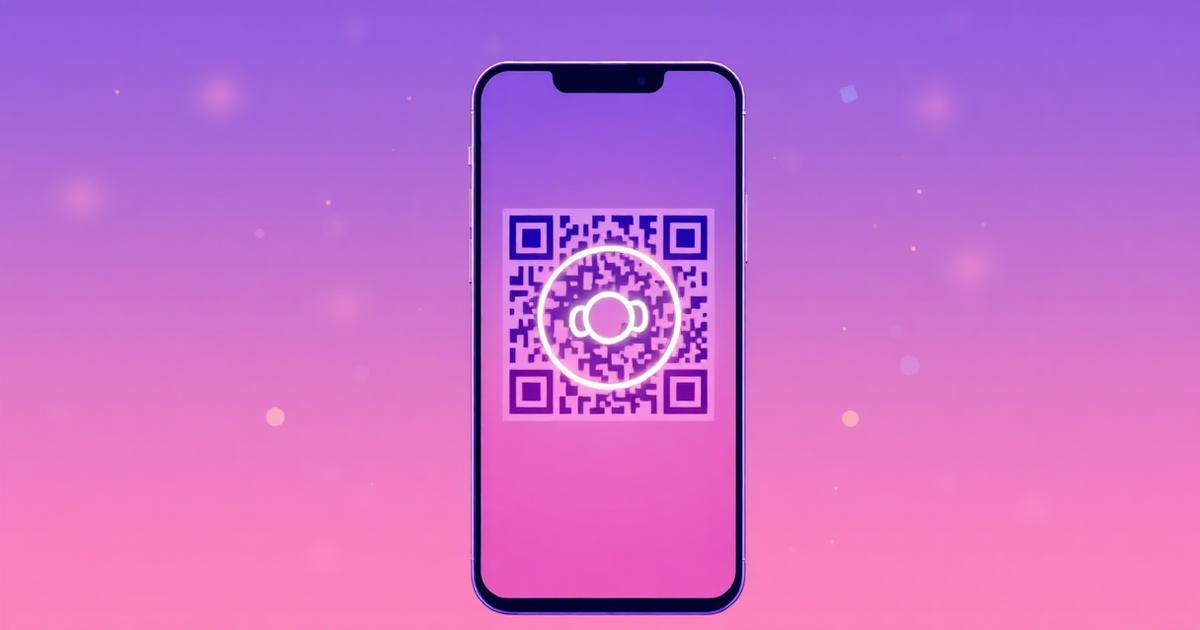
Adding a logo to a QR code is one of the most common requests in branded print — and one of the most common ways to create a QR code that looks great and fails to scan.
The good news: it works reliably when done right. The bad news: most guides skip the part about why it sometimes fails, and what to actually test before sending to print.
This guide covers the mechanics, the rules that matter, and the step-by-step process for creating a QR code with a logo that scans every time.
Why logos in QR codes work at all#
A QR code has built-in error correction. This means the pattern contains redundant data — if part of the code is obscured, damaged, or covered, the scanner can reconstruct the missing information from the rest of the pattern.
There are four error correction levels:
| Level | Data recovery | Module density |
|---|---|---|
| L (Low) | ~7% | Least dense |
| M (Medium) | ~15% | — |
| Q (Quartile) | ~25% | — |
| H (High) | ~30% | Most dense |
When you add a logo to the center of a QR code, you're intentionally covering part of the pattern. Error correction at level H means the scanner can still reconstruct up to 30% of the data even when that portion of the pattern is covered.
This is why logos work — and also defines the limit. Cover more than ~30% of the pattern and error correction can't compensate. The code fails.
The logo size rule#
Maximum logo area: 30% of the total QR code area.
In practice, keep it under 25% to give yourself a safety margin — especially if the code will be printed small, displayed on a surface with any glare, or scanned from a distance.
Calculating 25% of a square QR code: if your QR is 4cm × 4cm (16 cm²), the logo should be no larger than 4 cm² — roughly 2cm × 2cm.
Most QR generators that support logos enforce this automatically. If you're placing a logo manually in a design tool, measure it.
The contrast rule — equally important#
A logo in the center doesn't break a QR code. A logo that reduces contrast does.
Scanners detect QR codes by finding the contrast between dark modules and light background. If your logo introduces mid-tones, gradients, or colors similar to the QR pattern, contrast detection breaks down before the scanner even gets to error correction.
Rules that matter:
- Keep a white or light background behind the logo. A solid white square or circle "padding" around the logo preserves the quiet zone in the center of the code.
- Don't use semi-transparent logos. A transparent PNG overlaid on a dark QR pattern kills contrast.
- Avoid logos with colors similar to the QR module color. A dark navy logo on a dark QR pattern is nearly invisible to a scanner.
- Don't colorize the QR modules to match your logo. Light-colored QR modules on a white background fail. The modules need to be dark enough to detect.
Step-by-step: creating a QR code with logo on QRflows#
Step 1: Choose dynamic or static
Before adding any branding, decide whether you need a dynamic QR code (editable destination, scan analytics) or a static one (free, permanent, no analytics).
For anything that will be printed at volume or might need updating — menus, packaging, signage — use dynamic. For a simple permanent link that won't change, static works fine.
Step 2: Generate the QR code
On qrflows.app/qr-code-with-logo:
- Choose your QR type (URL, WiFi, vCard, etc.)
- Enter the destination
- Set error correction to H (High) — this is required for logo placement
- Generate the code
Error correction H produces a slightly denser pattern than lower levels — this is normal and expected when you're adding a logo.
Step 3: Upload your logo
Requirements for the logo file:
- Format: PNG with transparent background (preferred), SVG, or JPG
- Shape: Square or circular logos work best — they fill the center evenly
- Size: The tool will scale it to the safe zone automatically; don't try to override this
- Color: Should contrast clearly against white background
If your logo is complex (many colors, thin lines, gradients), consider using a simplified version — a logomark or icon — rather than the full wordmark. Fine details don't render well at small sizes and can create contrast issues.
Step 4: Add padding behind the logo
Most QR generators add a white background behind the logo automatically. If you're placing the logo manually in a design tool, add a white square or circle behind the logo with at least 3–4px of padding on all sides. This preserves contrast at the logo boundary.
Step 5: Check the color settings
If you're using a colored QR code (dark modules in brand color instead of black):
- Dark modules on white background: works as long as the module color is dark enough. Dark navy, dark green, dark red — fine. Light blue, yellow, light gray — will fail.
- White modules on colored background: works if the background is dark enough. Never use light-colored backgrounds.
- Test, don't assume. What looks fine on screen may not have enough contrast for a scanner.
Step 6: Export in the right format
For print: SVG or PDF. These are vector formats that scale to any size without quality loss. A QR code exported as SVG can be blown up to billboard size without pixelation.
For digital use (web, email, presentations): PNG at minimum 300×300px. For larger display sizes, export at the target display size × 2 for retina screens.
Never use: JPG for QR codes. JPG compression introduces artifacts at the edges of the modules, which reduces contrast and scan reliability.
Step 7: Test before you print
This is the step most people skip. Test on at least two devices before sending to print:
- Scan from the intended scanning distance (arm's length for menus, 0.5–1m for table signs, 1–2m for posters)
- Test on iOS (iPhone camera app, not a third-party scanner)
- Test on Android (Google Lens or camera app)
- Test at the final output size — print a test copy at actual size before the full run
- Test in different lighting conditions — direct sunlight, indoor fluorescent, dim ambient
If it fails any of these: the logo is probably too large, contrast is too low, or the background behind the logo is missing.
Common mistakes and why they happen#
Logo too large. Typically happens when someone scales up the logo to make it "more visible." Past ~30% coverage, error correction can't compensate. If the logo feels too small, the QR is probably the right size and the logo expectation is wrong — QR codes are functional objects, not canvases.
Transparent logo on dark QR. A PNG with transparency placed directly on a dark-colored QR code means the logo takes on the color of the modules beneath it. The logo becomes invisible to the scanner AND visually unclear to the human eye. Always add a white background behind the logo.
Light QR modules. Light gray or pastel-colored QR patterns are fashionable in design but unreliable in scanning. The modules need to be dark enough that a scanner can detect them against the background. If you can't tell the dark parts from the light parts easily, a scanner can't either.
JPG export. JPEG compression blurs the sharp edges of QR modules. This is nearly invisible to the human eye but dramatically reduces scanner reliability, especially at smaller sizes. Always export as PNG or SVG.
Testing only on screen at full zoom. A QR code that scans perfectly when you hold your phone 5cm away from a desktop monitor may fail when printed at business-card size. Test at the actual output size.
Skipping the test print. The final print environment (paper type, ink coverage, lamination) can affect scan reliability. A glossy laminate can cause glare that reduces contrast. Matte finishes generally scan more reliably. Always print one test copy before the full run.
Size guidelines for different print formats#
| Format | QR size | Notes |
|---|---|---|
| Business card | 2.5 × 2.5 cm minimum | Scan from arm's length |
| Flyer / brochure | 3 × 3 cm | Comfortable scanning range |
| Table tent / menu | 4 × 4 cm | Works well at table height |
| Poster (viewed at 1m) | 6 × 6 cm minimum | Test from intended viewing distance |
| Outdoor signage (viewed at 2m+) | 10 × 10 cm minimum | Larger distance = larger code needed |
| Packaging | 2 × 2 cm minimum | Test on actual packaging material |
These are minimums, not recommendations. Larger is always more reliable.
What a QR code with logo should look like#
A well-executed QR code with logo:
- Has clearly visible dark modules on a white or light background
- Has a logo centered in the quiet zone, sized at 20–25% of the total area
- Has visible white padding around the logo
- Has the three finder patterns (the square corners) fully intact — never cover these
- Scans in under 2 seconds from the intended scanning distance
The three corner squares (finder patterns) are non-negotiable. They're how the scanner orients the code. If your logo or design overlaps any of the three corners, the code will fail.
Getting started#
The QRflows logo QR generator handles error correction level H, white logo padding, and format export automatically. Upload your logo, choose your destination, and test the result before printing.
For dynamic QR codes with a logo — editable destination, scan analytics, Smart Rules — QRflows offers a free trial of 3–10 days depending on plan.
Frequently asked questions#
Does adding a logo reduce scan reliability? It can, if the logo is too large or reduces contrast. Done correctly — logo at 20–25% of the QR area, white padding behind the logo, error correction at H — branded QR codes scan as reliably as plain ones. The key is testing at the actual print size before the full run.
What's the best logo file format for QR codes? PNG with transparent background is the most common and works well. SVG is better if you have it — it scales perfectly at any size and produces the sharpest output when the QR itself is also SVG. Avoid JPG for logos in QR codes — compression artifacts create contrast issues.
Can I use a full-color logo? Yes, as long as the logo colors contrast clearly against the white background behind the logo — and the logo doesn't introduce colors similar to the QR module color. A colorful logo on a white padding square in the center of a black-module QR works fine.
Can I change the QR code color to match my brand? Yes, with important constraints: the modules must be dark enough to detect against the background. Dark brand colors (navy, forest green, dark red, black) work well. Light brand colors (sky blue, yellow, light gray) will fail. Always test with an actual scanner, not just visual inspection.
What if my logo is rectangular (wider than tall)? Rectangular logos work but use space less efficiently. The logo still needs to fit within the safe zone (20–25% of total QR area). A horizontal wordmark may need to be smaller than a square logomark to fit within these constraints. Consider using just the logomark (icon/symbol) rather than the full wordmark for better results at small sizes.
Does a QR code with a logo work on curved surfaces? It depends on the curve radius. Mild curves (like a bottle label) are generally fine. Sharp curves can distort the pattern enough that scanners struggle to orient correctly. Test on the actual curved surface before committing to a large print run.
*See also:*
Related articles

Ready to try dynamic QR codes?
Start your free trial — no credit card required.
3–10 days free depending on plan.