How to Create a QR Code for Telegram (Profile, Channel, Group or Bot)
One scan can open your Telegram profile, channel, group or bot. Here's which link to use for each, how to create the code with a pre-filled message, and where to place it so people actually scan.
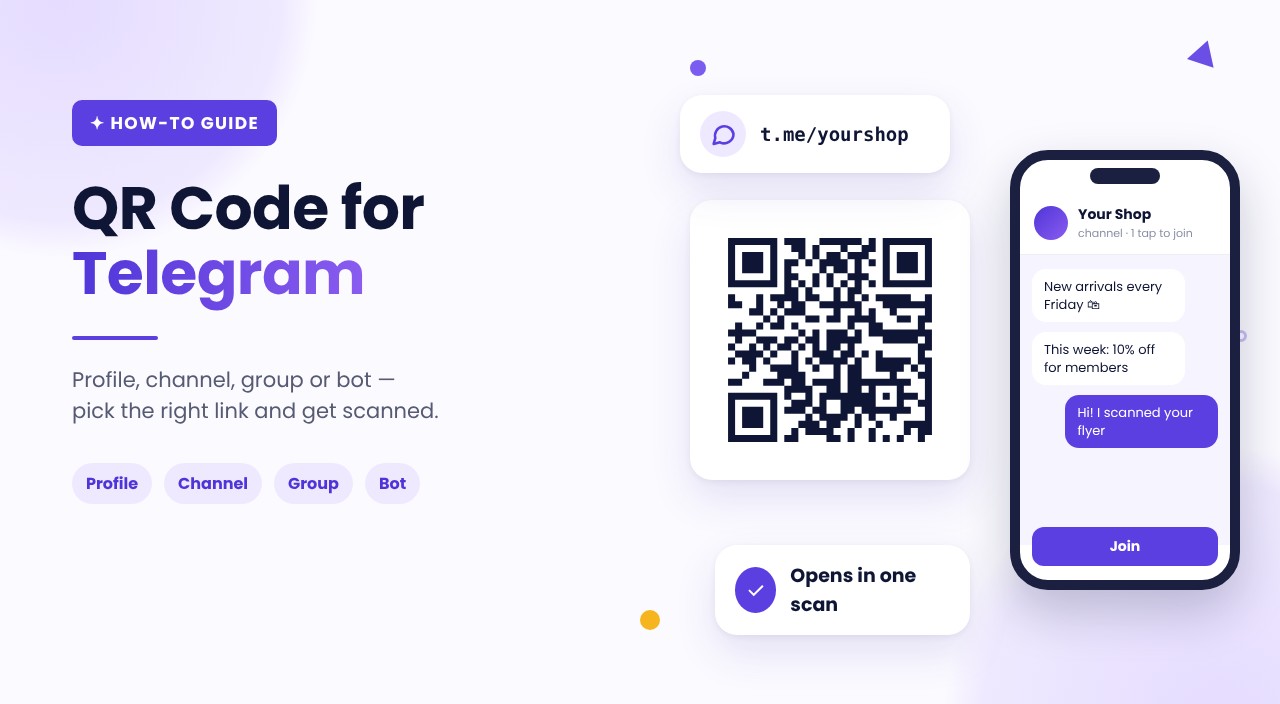
Telegram is where many small businesses, creators, communities and event organizers talk to their audience — but getting people there from a flyer, a shop counter or a slide is harder than it looks. Typing a username letter by letter, finding the right account among look-alikes, guessing whether it's a channel or a group: every step loses people. A QR code turns all of that into one scan.
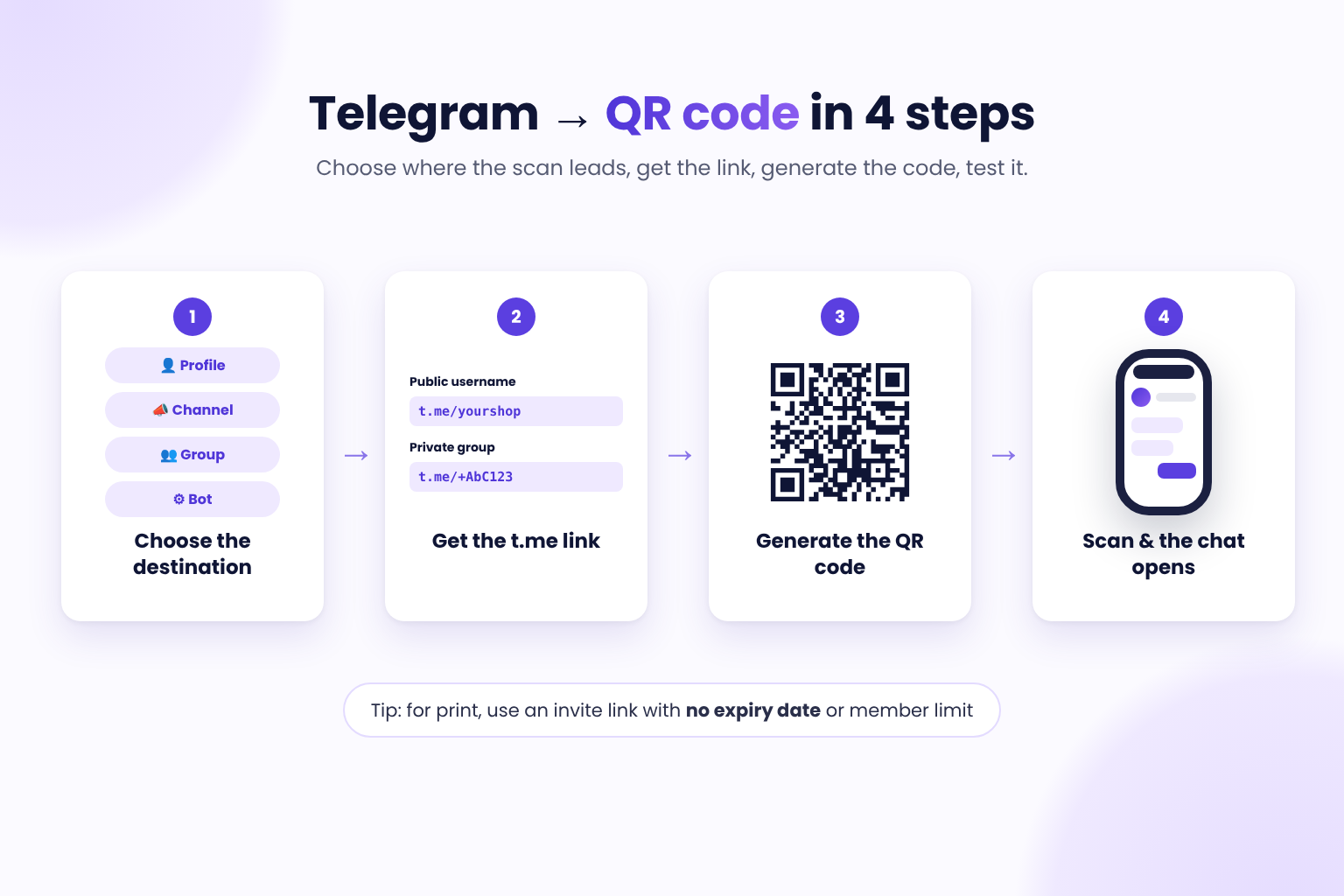
The good news: making a Telegram QR code takes a couple of minutes. The part that matters is choosing the right link behind it — a profile, a public channel, a private group and a bot each use a different Telegram link format. This guide shows which one to use, how to create the code, what to write next to it and where to place it.
Which Telegram link should your QR code open?#
A QR code for Telegram doesn't contain your account — it contains a link. When someone scans it, their phone opens the link, and the Telegram app (or Telegram's web page, if the app isn't installed) shows the right chat. So the first decision is which link to encode. These are the formats documented in Telegram's deep links reference:
| Where the scan should lead | Link format | Example |
|---|---|---|
| Your personal or business profile | t.me/<username> | t.me/yourshop |
| Public channel or public group | t.me/<username> | t.me/yourshop_news |
| Private group or channel | Invite link t.me/+<hash> | t.me/+AbC123xYz |
| Bot | t.me/<bot_username> | t.me/yourshop_bot |
| Bot with a tracking parameter | t.me/<bot_username>?start=<parameter> | t.me/yourshop_bot?start=flyer |
| Chat with a pre-filled message | t.me/<username>?text=<message> | t.me/yourshop?text=Hi |
| A specific post in a public channel | t.me/<username>/<post_id> | t.me/yourshop_news/42 |
A few practical notes:
- Public usernames use the letters a–z, the digits 0–9 and underscores, and they're case-insensitive, according to the Telegram FAQ.
t.me/YourShopandt.me/yourshoplead to the same place. - Private groups and channels have no username, so they use an invite link. You create it in the group's info: Add Members → Invite to Group via Link. Telegram lets you give the link a name, an expiry date and a usage limit, require admin approval, and revoke it at any time — and a revoked link stops working immediately. Keep that in mind before printing it.
- Bot start parameters can be up to 64 characters long and may use only letters, digits, underscores and hyphens. They're a simple way to tell your bot where a user came from — for example
?start=postervs?start=menu.
Option 1: Telegram's built-in QR code#
Telegram has its own QR codes. Since the December 2021 update, you can generate one for any user, group, channel or bot that has a public username:
- Your own profile: open Settings and tap the QR code icon next to your name.
- A group, channel or another user: open the chat's info page and tap the QR code icon next to the username.
From there you can share or save the image. It's free and quick, and it's fine for sending to someone in a chat or showing on your phone screen.
It has limits for business use, though:
- It works only with a public username — not with a private invite link.
- It can't add a pre-filled message or a bot start parameter.
- It's static: if you rename the channel or move to a new group, the printed code points to the old place.
- It doesn't tell you how many people scanned it.
- You get Telegram's design, not a code you can export as a vector file for a print shop.
For anything printed — flyers, packaging, posters, table cards — a QR code you generate yourself is usually the better choice.
Option 2: Create a Telegram QR code with a generator#
- Open the free Telegram QR code generator.
- Enter the username of your profile, channel, group or bot — without the
@. - *(Optional)* Add a start message. When someone scans the code, Telegram opens the chat with your text already typed, and they just tap Send.
- Check the preview and download the code: PNG for screens, documents and everyday printing; SVG for professional printing, because it stays sharp at any size.
For a private group or channel, copy its invite link (t.me/+…) and paste it into a URL QR code generator instead — the Telegram generator works with usernames.
What to write next to a Telegram QR code#
A bare QR code doesn't explain itself. One short line telling people what they'll get makes the scan an easy decision. Examples you can adapt:
- Channel: "Scan to join our Telegram channel — new arrivals every Friday."
- Group / community: "Scan to join the group: questions, meetups and updates."
- Support or order bot: "Scan to chat with our bot — track your order in Telegram."
- Personal or sales chat: "Scan to message us on Telegram."
- Course or workshop: "Scan to join the course group for materials and Q&A."
- Event: "Scan for live updates and schedule changes on Telegram."
Pre-filled messages that work
If the code opens a chat, a pre-filled message tells you where the person came from and makes the first step easier. Keep it short and natural:
- "Hi! I scanned your flyer and have a question."
- "Hello, I'd like to book a table."
- "Hi, I'm interested in the course."
People can edit the text before sending it, so don't put anything in it you wouldn't want them to send.
Where to place a Telegram QR code#
Place the code where people already have their phone in hand and a reason to stay in touch:
| Placement | Typical destination | Suggested text |
|---|---|---|
| Business card | Your profile | "Scan to message me on Telegram" |
| Package insert | Channel or support bot | "Scan for order updates and deals" |
| Shop counter or window | Channel | "Scan for new arrivals and offers" |
| Event badge, banner or slide | Event channel or group | "Scan for live updates" |
| Course handout | Private group (invite link) | "Scan to join the course group" |
| Restaurant table card | Bot or channel | "Scan to order or get today's specials" |
Size the code for the scanning distance: a code on a poster across the room needs to be far larger than one on a business card. Our guide to QR code size for print covers sizes and quiet zones for common formats.
Test it before you print#
- Scan with a phone that has Telegram installed. The right chat, channel or bot should open, with your start message if you added one.
- Scan with a phone that doesn't have Telegram (or open the link in a desktop browser). People should land on a page that lets them open or install Telegram, not an error.
- Check private invite links from an account that isn't in the group. If you set an expiry date, a usage limit or approval, make sure that's what you want on something printed.
- Scan the printed proof, not just the file on your screen.
Common mistakes#
- Encoding the `@` or a typo in the username. Copy the username from the chat's info page instead of typing it.
- Printing an invite link that expires. A link with an expiry date or a member limit stops working at some point. For print, use a link without limits — or a dynamic code you can repoint.
- Linking to the wrong place. People wanted the channel, you sent them to your personal profile. Decide one destination per code.
- Renaming the channel after printing. With a static code, the old username stops leading to you. With a dynamic code, just update the destination.
- No call to action. "Scan me" says nothing. Say what people get.
When a dynamic Telegram QR code is worth it#
A free static code is perfect for a username that won't change. A dynamic code encodes a short link you control, so you can:
- change the destination after printing — a new channel, a new bot, a fresh invite link — without reprinting;
- see whether the code is used — scans over time, devices and locations in QR code analytics;
- show a branded landing page before Telegram opens, for example with links to your Telegram channel and other contacts (Growth plan and above).
On QRflows.app, dynamic codes are free to create during the trial. Plans start at €9/month (Starter); landing pages and bulk creation are included from Growth (€19/month), and Pro (€39/month) adds Smart Rules — for example, sending people to different channels by language or location — plus A/B testing and advanced analytics.
FAQ#
How do I create a QR code for Telegram? Copy your Telegram username (or a private invite link), paste it into a Telegram QR code generator and download the code as PNG or SVG. You can also use Telegram's built-in QR code: open Settings or a chat's info page and tap the QR icon next to the username.
Can I make a QR code for a private Telegram group or channel? Yes. Create an invite link in the group's info (it looks like t.me/+ followed by a code) and turn that link into a QR code with a URL QR generator. Avoid invite links with an expiry date or member limit on printed materials.
Can a Telegram QR code open a chat with a message already typed? Yes. Telegram links support a text parameter (t.me/username?text=your message), so the chat opens with the message pre-filled and the person just taps Send. Bots use a start parameter instead (t.me/botname?start=value).
Do people need Telegram installed to scan the code? Any modern phone camera can scan the code. If Telegram is installed, the chat opens in the app; if not, the person sees a Telegram web page where they can open or download the app.
Where do I find my Telegram QR code? Open Telegram, go to Settings and tap the QR code icon next to your name. For a group, channel or bot, open its info page and tap the QR icon next to the username. Built-in codes work only for public usernames.
Can I change a Telegram QR code after printing it? Only if it's dynamic. A dynamic QR code points to a short link you can redirect to a new username, channel or invite link at any time. A static code has the link built in and has to be reprinted.
Want to change your Telegram destination after printing and see how many people scan? Create a dynamic Telegram QR code during your free trial — no credit card required. Start free trial →
Related articles

Ready to try dynamic QR codes?
Start your free trial — no credit card required.
3–10 days free depending on plan.